
What is the real difference between Lightroom and Photoshop, and which one should you use?
Quick answer: Lightroom is a non-destructive, catalog-based editor built for organizing and batch-adjusting large photo libraries, while Photoshop is a pixel-level editor built for detailed retouching, compositing, and layer-based work on individual images. For most photographers, Lightroom handles 90% of daily editing, and Photoshop steps in when an image needs advanced manipulation that goes beyond global or local adjustments.
Lightroom vs Photoshop compared: file handling, RAW editing, layers, AI tools, pricing, and which Adobe editor fits your workflow. Updated for 2026.
Key Takeaways
- Lightroom excels at batch editing, RAW processing, and photo organization — ideal for high-volume shooters.
- Photoshop is the go-to tool for compositing, detailed retouching, and layer-based pixel editing.
- Both tools support non-destructive editing, but in different ways — Smart Objects in Photoshop, catalog edits in Lightroom.
- Lightroom (cloud) and Lightroom Classic are two separate apps with different catalog systems — know which you have.
- Adobe's Photography plan bundles both apps at a price lower than buying either standalone.
- Photoshop has a larger AI toolset (Generative Fill, Generative Expand); Lightroom includes AI Denoise, AI Masking, and Generative Remove.
- Beginners should start with Lightroom; add Photoshop once retouching or compositing needs arise.
What Is the Real Difference Between Lightroom and Photoshop?
Here's the reality: both apps come from Adobe, both edit photos, and both are included in the same subscription — which is exactly why so many photographers get stuck choosing between them.
The distinction is simpler than most tutorials make it. Lightroom is a catalog-based, non-destructive editor designed to move hundreds or thousands of photos through a consistent workflow. Photoshop is a pixel-level editor designed to do almost anything to a single image, from compositing a sky replacement to removing a stray lamppost one pixel at a time. Adobe's own comparison page frames the split the same way.
Most working photographers use both. They just use them for very different jobs.
💡 Volume vs. Depth > > The clearest way to think about this: Lightroom is for volume (many photos, fast adjustments), Photoshop is for depth (one image, pixel-precise control). If your editing problem is "I have 800 photos to deliver by Friday," that's Lightroom. If it's "I need to remove this ex-boyfriend from the wedding portrait," that's Photoshop.
What Lightroom Is Built to Do
- Import, organize, and rate large photo libraries using a catalog system
- Apply non-destructive adjustments — exposure, color, tone — across individual or batches of images
- Export optimized files for web, print, or client delivery
- Sync edits across devices via Lightroom cloud (mobile, desktop, web)
What Photoshop Is Built to Do
- Edit individual images at the pixel level using layers, masks, and blending modes
- Perform advanced retouching: skin smoothing, background removal, object removal, and compositing
- Combine multiple exposures, images, or graphic elements into a single composition
- Support a wide range of file types beyond photography, including PSD, PSB, and vector elements
Side-by-Side Comparison Table
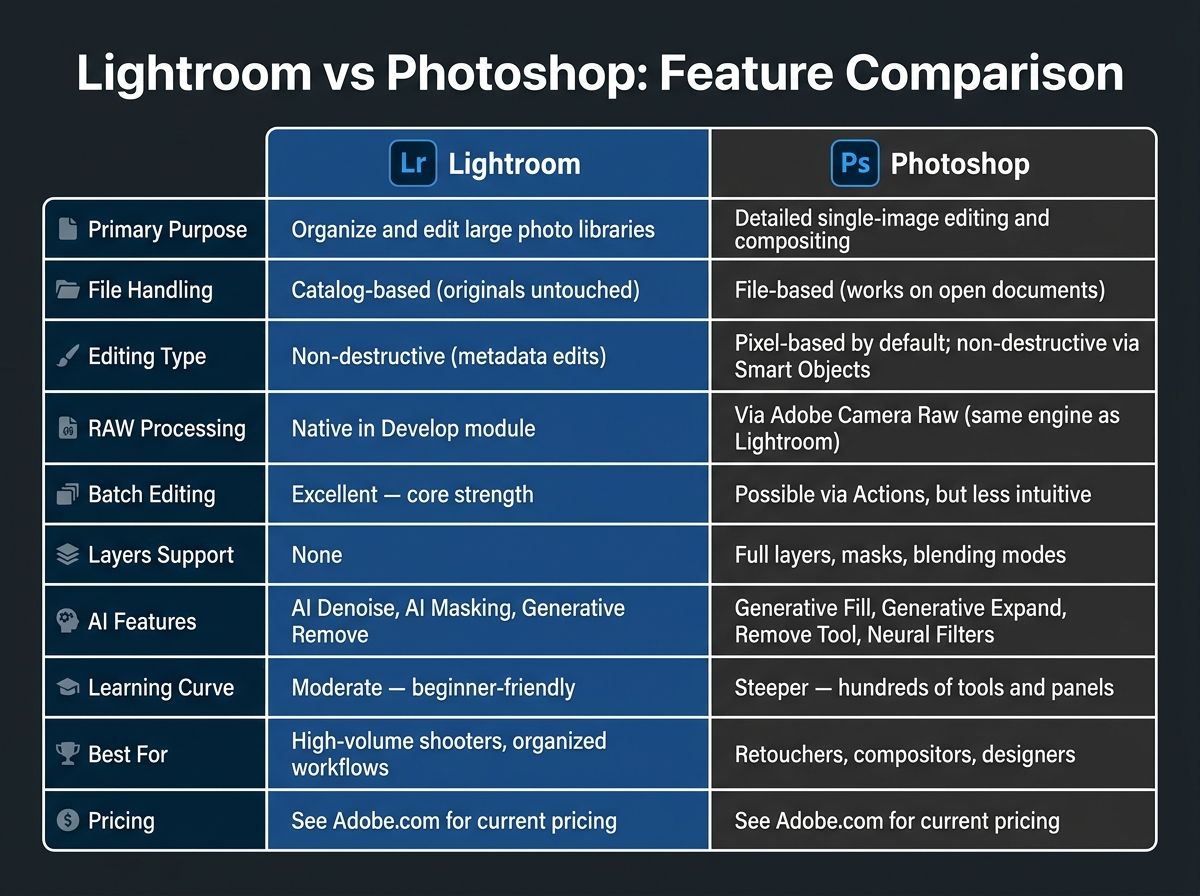
Here's the quick-reference breakdown. If you're scanning for a decision, this table does most of the heavy lifting.
| Feature | Lightroom | Photoshop |
|---|---|---|
| Primary Purpose | Organize and edit large photo libraries | Detailed single-image editing and compositing |
| File Handling | Catalog-based (originals untouched) | File-based (works on open documents) |
| Editing Type | Non-destructive (metadata edits) | Pixel-based by default; non-destructive via Smart Objects |
| RAW Processing | Native in Develop module | Via Adobe Camera Raw (same engine as Lightroom) |
| Batch Editing | Excellent — core strength | Possible via Actions, but less intuitive |
| Layers Support | None | Full layers, masks, blending modes |
| AI Features | AI Denoise, AI Masking, Generative Remove | Generative Fill, Generative Expand, Remove Tool, Neural Filters |
| Learning Curve | Moderate — beginner-friendly | Steeper — hundreds of tools and panels |
| Best For | High-volume shooters, organized workflows | Retouchers, compositors, designers |
| Pricing | See Adobe's pricing page | See Adobe's pricing page |
⚠️ Pricing Note > > Adobe pricing varies by region and changes periodically. Always check Adobe's official Creative Cloud Photography plans page for current figures before subscribing. Nothing in this article should be treated as a guaranteed price.
How Each Tool Works: File Handling and Editing Model
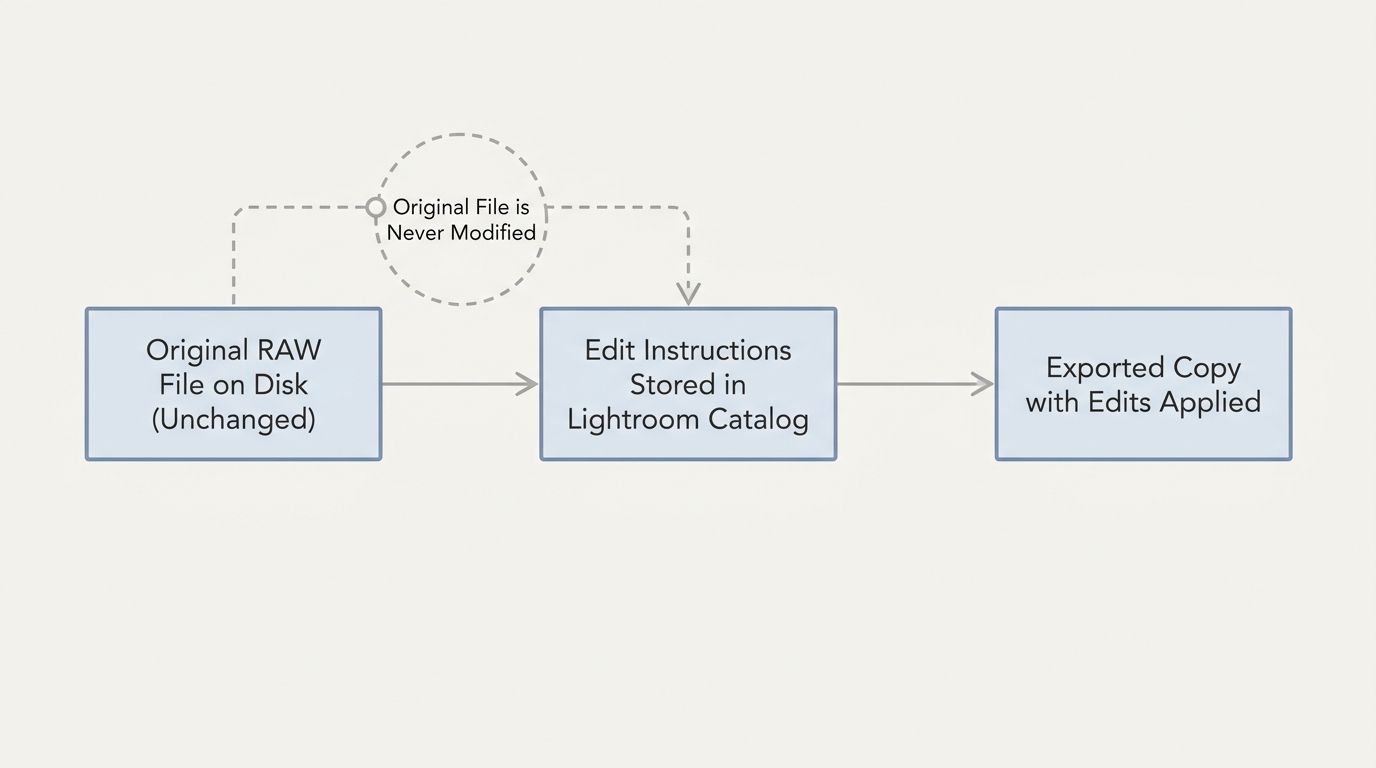
This is where the two apps really diverge. Lightroom and Photoshop treat your image file in fundamentally different ways, and understanding that difference clears up most of the confusion around which tool to use.
Lightroom stores every edit as a set of instructions in its catalog file. Your original RAW or JPEG is never touched. Photoshop, by default, edits pixels directly — paint a brush stroke, those pixels are now that color. But that's not the full story. Photoshop also supports non-destructive workflows through Smart Objects, adjustment layers, and layer masks, so the "Photoshop is destructive" shorthand you'll see in a lot of beginner guides is only half true.
⚠️ Accuracy Note: Photoshop and Non-Destructive Editing > > You'll often read that Photoshop is a "destructive" editor and Lightroom is "non-destructive." That's an oversimplification. Photoshop is pixel-based by default, but Smart Objects preserve original data, adjustment layers float above your image without altering it, and layer masks hide pixels rather than deleting them. Used properly, Photoshop can be fully non-destructive.
How Lightroom's Catalog System Works
- Lightroom stores original files in their source location; it never moves or alters them by default
- All edits are recorded as metadata instructions in the catalog file (or as XMP sidecar files for certain formats)
- Because originals are untouched, any edit can be undone or revised at any time — indefinitely
- Exporting creates a new copy of the file with edits baked in, leaving the original intact
The practical upside: you can push a slider too far, close your laptop, come back a month later, and pull it right back. Your RAW file never knew anything happened.
How Photoshop's Pixel-Based Model Works
- Photoshop edits pixels directly by default — changes like painting or erasing are permanent unless undone
- Smart Objects allow layers to be edited non-destructively by preserving original pixel or vector data
- Adjustment layers (Curves, Levels, Hue/Saturation) sit above image layers and can be modified or removed at any time
- Layer masks hide rather than delete pixels, enabling non-destructive compositing and selection workflows
- The History panel allows multi-step undo within a session, but does not persist after the file is closed unless saved as a PSD
The practical takeaway: if you're serious about Photoshop, learn Smart Objects and adjustment layers early. They'll save you more headaches than any other single habit.
Lightroom vs Lightroom Classic: Which Version Are You Comparing?
Most comparison articles skip this, and it causes real confusion. When someone says "Lightroom," they could mean one of two completely different apps.
Lightroom (sometimes still called Lightroom CC) is cloud-first. Your originals and edits live on Adobe's servers and sync across desktop, mobile, and web. Lightroom Classic is desktop-only with a local catalog on your hard drive. It has more features, more granular organization tools, and is what most working pros use day-to-day. Both are included in the Photography plan.
| Aspect | Lightroom (Cloud) | Lightroom Classic |
|---|---|---|
| Storage Model | Cloud-based (originals synced to Adobe) | Local catalog + local files |
| Catalog Location | Managed by Adobe cloud | On your hard drive |
| Platform Availability | Desktop, iOS, Android, Web | Desktop only (Mac/Windows) |
| Mobile Sync | Native, seamless | Via smart previews, more limited |
| Best For | Mobile-first shooters, casual libraries | Professional workflows, large archives |
💡 Which Lightroom Is in the Photography Plan? > > Both are. The Photography plan includes Lightroom (cloud), Lightroom Classic, and Photoshop. You don't have to pick between the two Lightrooms — but you do need to know which one your work lives in, because the catalogs don't share seamlessly. Picking the wrong one and migrating later is a real pain.
For the rest of this comparison, when we say "Lightroom," we're referring to either version — the core editing tools are nearly identical. Where the distinction matters, we'll call it out.
Core Features Compared
The headline specs are one thing. How these tools actually behave in your workflow is another. Here's how they stack up on the features that matter most.
RAW File Processing
- Lightroom handles RAW files natively in its Develop module, offering a full suite of tone, color, and lens correction tools
- Photoshop routes RAW files through Adobe Camera Raw (ACR), which provides similar controls before the image opens for pixel editing
- Both use the same underlying processing engine, so RAW quality is comparable between the two
- Lightroom is generally faster for processing large RAW batches; Photoshop is better when ACR adjustments need to precede layer-based work
💡 RAW Files in Photoshop > > Photoshop absolutely opens RAW files — it just opens them in Adobe Camera Raw first. ACR's interface mirrors Lightroom's Develop module and uses the identical processing engine, so the RAW look you can achieve in each app is effectively the same. The difference is workflow, not image quality.
Batch Editing
- Lightroom is purpose-built for batch editing: sync settings, copy-paste adjustments, and presets apply to hundreds of images in seconds
- Presets in Lightroom allow one-click application of saved editing styles across a full shoot
- Photoshop supports batch processing via Actions and the Image Processor, but the workflow is less intuitive and not catalog-based
- For event, wedding, or studio photographers managing large volumes, Lightroom's batch tools are significantly faster
If you're editing more than 50 images at a time on a regular basis, Lightroom isn't optional. It's the entire reason the app exists.
Layers, Masks, and Compositing
- Photoshop's layer system is its defining feature: stack images, text, shapes, and adjustments in independent, editable layers
- Layer masks allow precise, non-destructive control over which parts of a layer are visible
- Blending modes and opacity controls enable sophisticated compositing and creative effects
- Lightroom does not have a layers panel — it offers local adjustments (brush, radial, gradient) but cannot composite multiple images natively
This is the line in the sand. If you need to combine two photos into one — sky replacement, head swap in a group shot, exposure blend — you need Photoshop. No amount of Lightroom masking gets you there.
Presets and Develop Modules
- Lightroom's preset ecosystem is enormous — thousands of community and commercial presets are available for one-click looks
- Presets save entire collections of Develop settings and can be organized, previewed on hover, and batch-applied
- Photoshop Actions offer a similar concept but require more setup and are less visual in their preview functionality
- For color grading consistency across a shoot, Lightroom presets are the faster, more photographer-friendly tool
For most photographers chasing a consistent editing style across a full gallery, presets in Lightroom are where you'll live. Photoshop Actions are powerful but closer to macros than style libraries.
AI Features: Lightroom vs Photoshop in 2026
Both apps got serious AI upgrades over the last two release cycles, and this is probably the area changing fastest. Here's the current picture, pulled from Adobe's official release notes.
| AI Feature | Lightroom | Photoshop |
|---|---|---|
| AI Denoise | ✅ Available | Via ACR |
| AI Masking (Subject / Sky / People) | ✅ Available | ✅ Available |
| Generative Remove / Heal | ✅ Available | ✅ Available (Remove Tool) |
| Generative Fill | ❌ Not available | ✅ Available |
| Generative Expand | ❌ Not available | ✅ Available |
| Neural Filters | ❌ Not available | ✅ Available |
Source: Adobe Lightroom Classic What's New and Adobe Photoshop What's New.
⚠️ AI Feature Accuracy Warning > > Adobe ships AI updates frequently — sometimes every few months. Features marked as exclusive to one app today may appear in the other tomorrow. Before making a subscription decision based on a specific AI tool, verify current availability on Adobe's official What's New pages.
AI Tools in Lightroom
- AI Denoise: reduces noise in RAW files using machine learning while preserving fine detail — especially effective for high-ISO images shot at ISO 6400 and above
- AI Masking: automatically detects and selects subjects, skies, backgrounds, and clothing for targeted local adjustments
- Generative Remove: uses AI to intelligently erase unwanted objects and fill the gap with plausible background content
- These tools operate within Lightroom's non-destructive framework — every AI edit remains reversible
AI Tools in Photoshop
- Generative Fill: uses Adobe Firefly to generate new image content within a selection based on a text prompt
- Generative Expand: extends the canvas and fills new areas with AI-generated content that matches the existing image
- Remove Tool: automatically identifies and removes objects, people, or blemishes with AI-driven content awareness
- Neural Filters: a range of AI-powered filters including Smart Portrait adjustments, colorization, and style transfer
- AI-powered Select Subject and Select Sky mirror Lightroom's masking capabilities
Photoshop's AI toolset is deeper, but Lightroom's is more tightly integrated with everyday photo workflows. PetaPixel's ongoing coverage of Firefly updates is a solid place to track what's new between release cycles.
Which Is Easier to Learn?
Lightroom is the easier tool for beginners by a wide margin. Its workflow is linear — import, organize, develop, export — and the Develop module's sliders are labeled in plain English. Photoshop is more capable but has a famously steep learning curve, with hundreds of tools distributed across panels and menus that take months to internalize.
Getting Started with Lightroom
- The import-organize-develop-export workflow provides a logical structure beginners can follow immediately
- Sliders are intuitive and descriptively labeled (Exposure, Contrast, Highlights, Shadows, Whites, Blacks)
- Because edits are non-destructive, beginners can experiment freely without fear of ruining an original file
- Most core editing skills are learnable in a few dedicated practice sessions; basic proficiency usually comes within a few weeks of regular use
Resources like Digital Photography School and Adobe's own tutorials cover the Lightroom basics well, and the forgiving non-destructive model means you can't really break anything while you learn.
Getting Started with Photoshop
- Photoshop's interface has hundreds of tools, panels, and menus — the sheer volume is the primary barrier for beginners
- Understanding layers is the foundational concept; without it, most advanced workflows are inaccessible
- Reaching productive proficiency typically takes longer than Lightroom due to the depth and breadth of the tool
- Adobe and third-party platforms offer strong beginner courses; YouTube tutorials are widely available and free
- Photoshop rewards the investment — once you're proficient, the creative ceiling is significantly higher than Lightroom
The honest take: you don't need Photoshop on day one. Start with Lightroom, get comfortable, and add Photoshop when you hit a specific editing wall Lightroom can't solve.
Signs you're ready to add Photoshop to your workflow:
- You're comfortable editing and organizing in Lightroom
- You need to remove distracting elements that Generative Remove can't handle cleanly
- You want to composite multiple images or add text/graphic elements
- A client requests significant background replacement or complex retouching
- You're creating content beyond straight photography (marketing materials, album designs, etc.)
Pricing and Plans
Let's break down the actual plans. Adobe sells photography-focused subscriptions in several configurations, and the right one depends entirely on whether you need Photoshop and how much cloud storage you want.
| Plan | Included Apps | Approx. Monthly Price (USD) | Best For |
|---|---|---|---|
| Lightroom Plan | Lightroom (cloud) + 1TB storage | See Adobe | Mobile-first shooters who don't need Photoshop |
| Photography Plan (20GB) | Lightroom + Lightroom Classic + Photoshop + 20GB | See Adobe | Most photographers — best value entry point |
| Photography Plan (1TB) | Same apps + 1TB storage | See Adobe | Shooters with large cloud sync needs |
| All Apps | Full Creative Cloud suite | See Adobe | Designers and multi-discipline creators |
Prices are approximate, USD-based, and vary by region. Always check [Adobe's official pricing page](https://www.adobe.com/creativecloud/photography/compare-plans.html) for current figures. Last verified: refer to Adobe's page for live pricing.
💡 Best Value for Most Photographers > > For most photographers, the Photography Plan (20GB) is the right call. It bundles Lightroom, Lightroom Classic, and Photoshop together — and the bundle is usually cheaper than subscribing to either app on its own. Confirm current pricing on Adobe's page before you commit.
One thing to watch: if you're running older hardware, check the Lightroom Classic system requirements and Photoshop system requirements before subscribing. Both apps have gotten heavier in recent versions, and AI features in particular benefit from modern GPUs.
Which Should You Choose? (By Photographer Type)
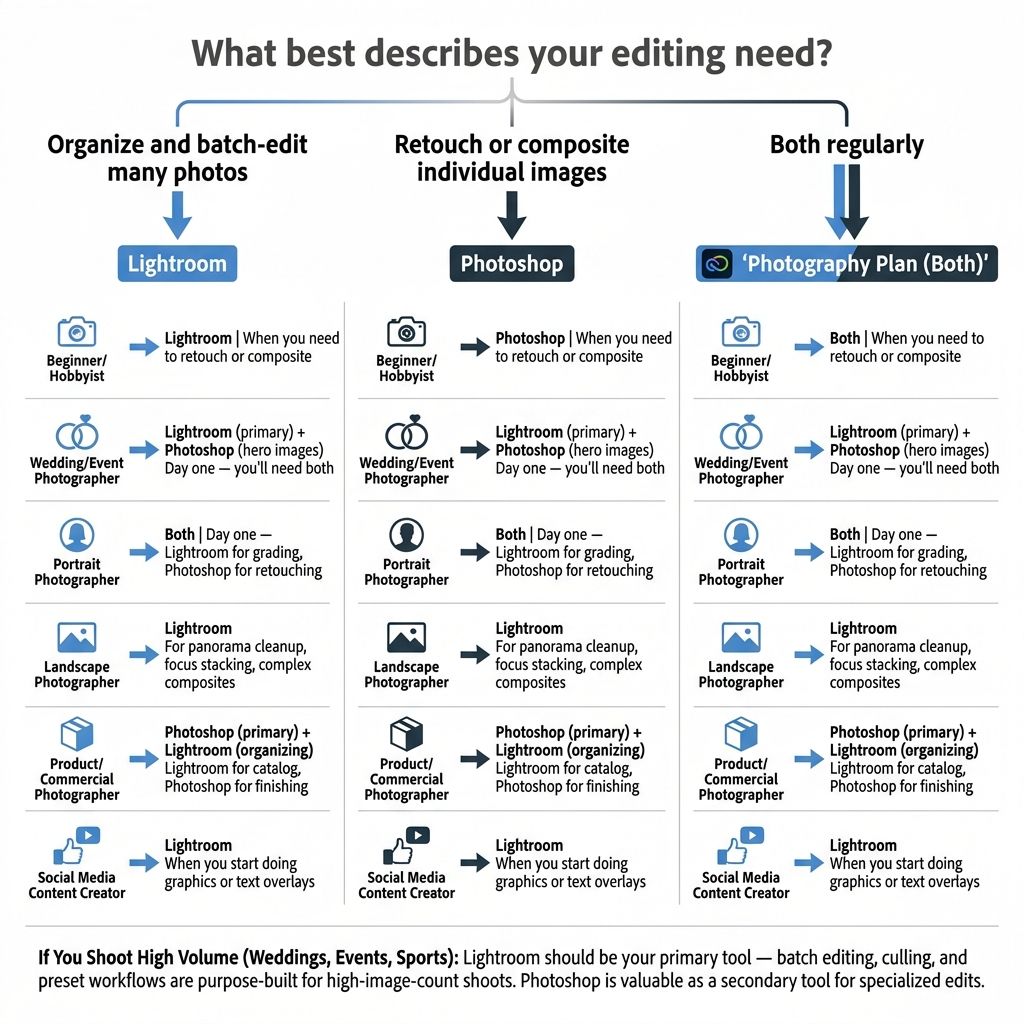
Enough theory. Here's the direct recommendation by photographer type.
| Photographer Type | Primary Recommendation | When to Add the Other Tool |
|---|---|---|
| Beginner / Hobbyist | Lightroom | When you need to retouch or composite |
| Wedding / Event Photographer | Lightroom (primary) + Photoshop (hero images) | Day one — you'll need both |
| Portrait Photographer | Both | Day one — Lightroom for grading, Photoshop for retouching |
| Landscape Photographer | Lightroom | For panorama cleanup, focus stacking, complex composites |
| Product / Commercial Photographer | Photoshop (primary) + Lightroom (organizing) | Lightroom for catalog, Photoshop for finishing |
| Social Media Content Creator | Lightroom | When you start doing graphics or text overlays |
If You Shoot High Volume (Weddings, Events, Sports)
- Lightroom should be your primary tool — batch editing, culling, and preset workflows are purpose-built for high-image-count shoots
- Photoshop is valuable as a secondary tool for the select images requiring advanced retouching, skin work, or background replacement
- Wedding photographers commonly report editing the majority of a gallery in Lightroom and sending only a small percentage — often 5–10% of final images — to Photoshop for detailed work
The math is simple: a 10-hour wedding can produce 2,000+ RAW files. Opening each one in Photoshop isn't a workflow, it's a hostage situation.
If You Focus on Portraits and Retouching
- Lightroom handles global toning and color grading well, and AI Masking enables targeted skin adjustments
- Photoshop is preferred for detailed skin retouching techniques (frequency separation, dodge and burn), eye enhancement, and removing blemishes at the pixel level
- A common portrait workflow: develop and color-grade in Lightroom, then send hero images to Photoshop for detailed retouching
For portraiture, "both" is the honest answer — and the Photography plan makes that affordable.
If You Shoot Landscapes
- Lightroom handles most landscape editing needs — exposure blending via masks, color grading, dehaze, and noise reduction with AI Denoise
- Photoshop adds value for panorama stitching cleanup, focus stacking, and removing foreground elements
- Many landscape photographers work almost entirely in Lightroom, reaching for Photoshop only for complex composites
If your landscape work is mostly single exposures with global edits, Lightroom alone will take you a long way. Add Photoshop when you start blending exposures or stitching panoramas that need cleanup.
Alternatives to Consider
Adobe isn't the only option, and subscription fatigue is real. A few alternatives are worth knowing about — especially if you want a one-time purchase or have specific workflow needs Adobe doesn't serve well.
Top Alternatives at a Glance
- Capture One: professional-grade RAW processor with strong tethered shooting support; preferred by some studio and commercial photographers who find its color science superior to Lightroom
- Affinity Photo 2: a one-time-purchase Photoshop alternative with layers, masking, and RAW processing; appeals strongly to users who want to avoid a subscription
- Luminar Neo: AI-driven editing software with a simpler interface; positions itself as an accessible alternative to Lightroom for users who prioritize AI tools over organizational features
- Darktable: a free, open-source RAW editor and photo manager — a Lightroom alternative for budget-conscious photographers willing to invest time in learning a less polished interface
💡 Should You Switch? > > For most photographers already in the Adobe ecosystem, the Photography plan's bundle is hard to beat on pure value. Alternatives are worth evaluating primarily if you have subscription fatigue, want a one-time purchase, or have a specific workflow need Adobe doesn't serve (tethered studio shooting is a common one — DPReview coverage of Capture One often cites this as its edge).
Frequently Asked Questions
Is Lightroom or Photoshop better for beginners?
Lightroom is the better starting point for most beginners. Its import-organize-edit-export workflow is logical and linear, edits are non-destructive so originals are never at risk, and the core tools are learnable in a few weeks. Photoshop is more capable but has a steeper learning curve and is best introduced once you're comfortable with the fundamentals of editing.
Do I need both Lightroom and Photoshop?
Many photographers get excellent results using only Lightroom. Photoshop becomes valuable when you need pixel-level retouching, compositing multiple images, working with layers, or performing advanced manipulation that goes beyond Lightroom's local adjustment tools. Adobe's Photography plan bundles both apps together, so it's practical to have both available even if Photoshop sees occasional use.
What is the difference between Lightroom and Lightroom Classic?
Lightroom (sometimes called Lightroom CC) is a cloud-first application that syncs your library across desktop, mobile, and web. Lightroom Classic is a desktop-only application that stores your catalog locally on your hard drive, offering more robust local organization and a larger feature set preferred by most professional photographers. Adobe's Photography plan includes access to both.
How much does Lightroom and Photoshop cost together?
Adobe's Photography plan bundles Lightroom, Lightroom Classic, and Photoshop together. Pricing varies by region and changes periodically — check Adobe's official pricing page for current figures. The bundle is typically more cost-effective than purchasing either app as a standalone subscription.
Can Photoshop open RAW files?
Yes. When you open a RAW file in Photoshop, it automatically routes through Adobe Camera Raw (ACR), where you can make tonal and color adjustments before the image opens in Photoshop for pixel-level editing. The Camera Raw interface is similar to Lightroom's Develop module and uses the same underlying processing engine.
Does Lightroom have layers?
No — Lightroom does not have a layers panel. It offers local adjustment tools including the brush, radial gradient, and linear gradient, as well as AI masking (Select Subject, Select Sky, Select People), which allow targeted edits to specific areas of a photo. For true layer-based editing, Photoshop is required.
Which is better for wedding photographers, Lightroom or Photoshop?
Lightroom is the primary tool for most wedding photographers due to its batch editing, preset workflows, and efficient culling capabilities — essential when processing hundreds or thousands of images from a single event. Photoshop is used as a secondary tool for select images requiring detailed retouching, skin work, or complex background adjustments.
Is Photoshop's editing destructive?
Photoshop is a pixel-based editor by default, meaning direct painting, erasing, or filter application permanently changes pixels unless undone. But Photoshop fully supports non-destructive workflows through Smart Objects, adjustment layers, and layer masks — allowing edits to be modified or removed at any time. The key is understanding which workflow you're using within the application.
Sources
- Adobe Official: Compare Lightroom and Photoshop
- Adobe Help: What's New in Lightroom Classic
- Adobe Help: What's New in Photoshop
- Adobe Creative Cloud Photography Plans Pricing
- Adobe Lightroom Classic System Requirements
- Adobe Photoshop System Requirements
- DPReview — Digital Photography Review
- PetaPixel — Photography News and Education
- Digital Photography School